Cancelling orders/products
It may happen that your system indicates that you have stock, while in reality you do not. Or a customer may no longer want a product. For that reason, you can cancel products that have not yet been shipped. There are two ways to do this:
- From the order actions widget
- From the Products tab inside the order
Starting from the actions widget
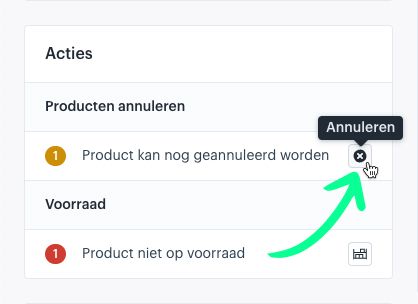
The actions widget of an order gives you quick access to the actions you need. For products that cannot be shipped—because they are, for example, out of stock—you will see an action that allows you to cancel those products.
In the example order used in this explanation, one product is out of stock. By clicking the button with the cross icon, you start the cancellation process for the product that is not in stock.
To cancel more products, you will need to start from the products grid.

Starting from the products grid
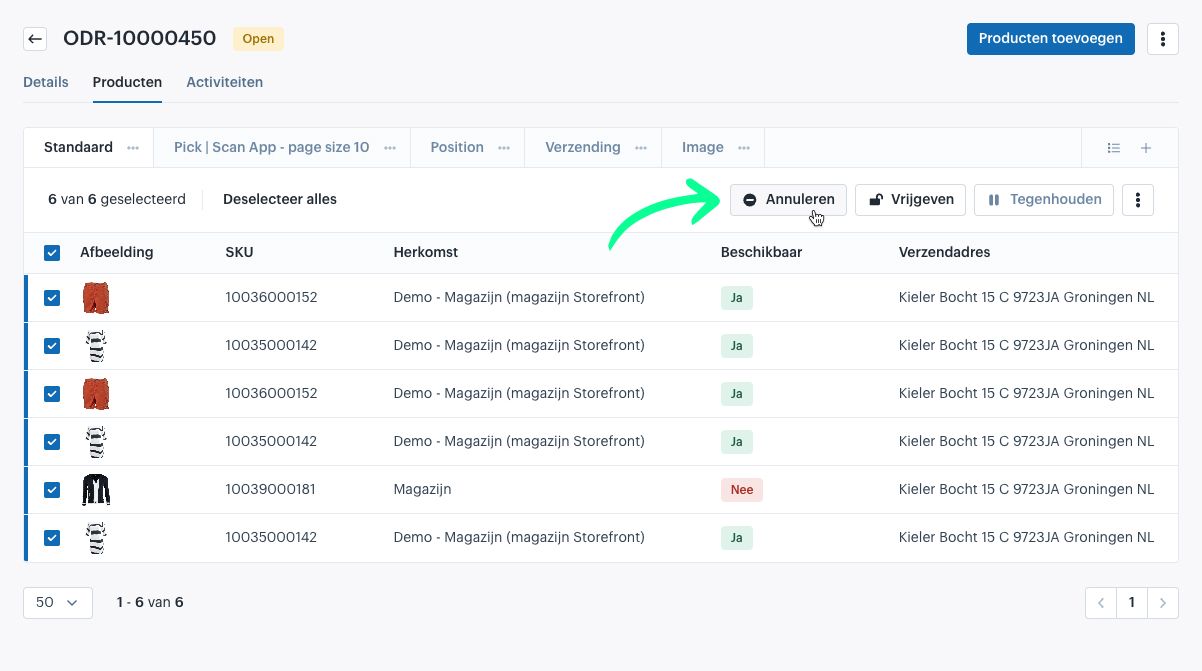
Go to the Products tab inside your order. In the data grid, select the products you want to cancel.
As soon as you select products, the bulk actions bar appears. If all selected products can be cancelled, you will see the Cancel action in this bar.
Clicking this action starts the cancellation process for the selected products.

Cancelling products
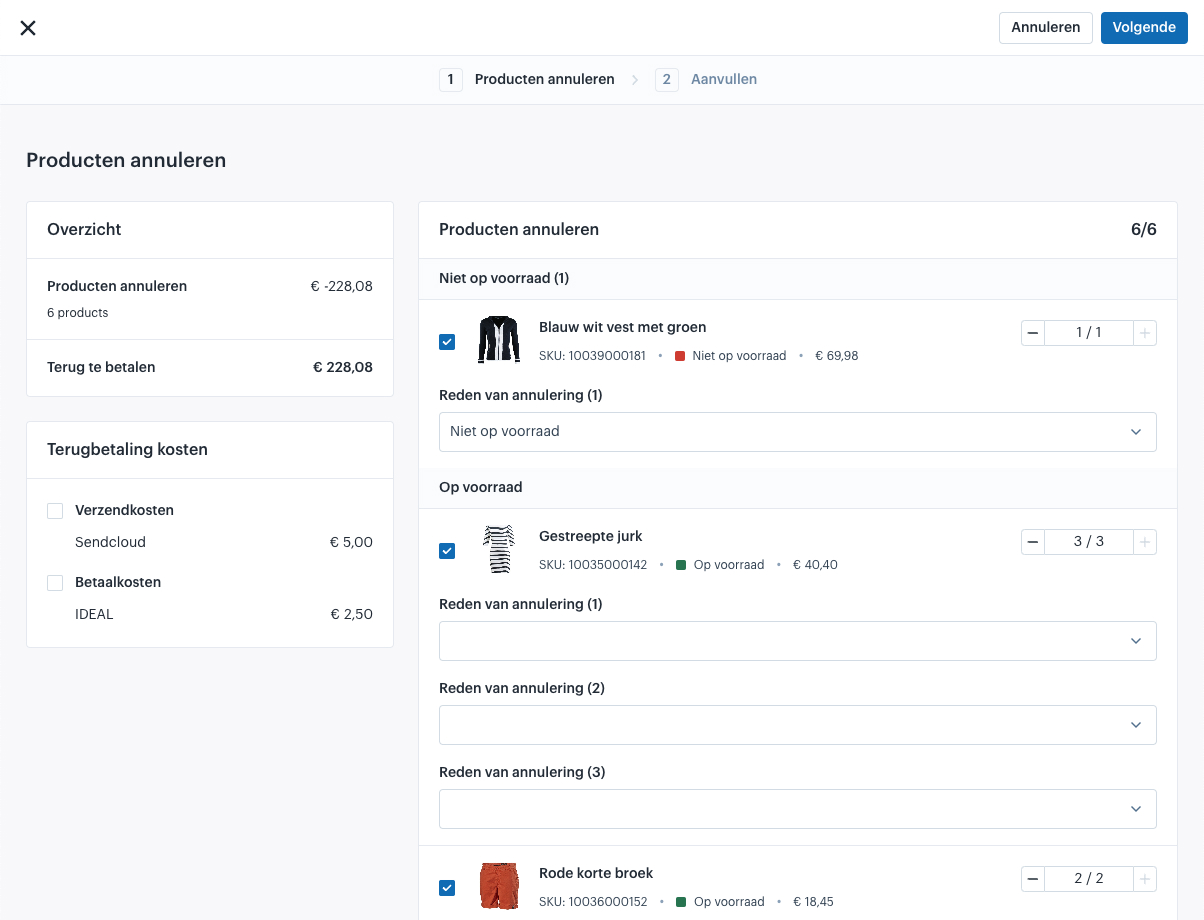
When you start the cancellation process—either from the actions widget or the products grid—a window opens where you can complete the process.
In this window, you can deselect products you do not want to cancel or adjust the quantities. On the left side, you will see an overview of the refund amounts.

Selecting the reason for cancellation
In the example shown, the products are split into two groups:
- Products that are out of stock
- Products that are in stock
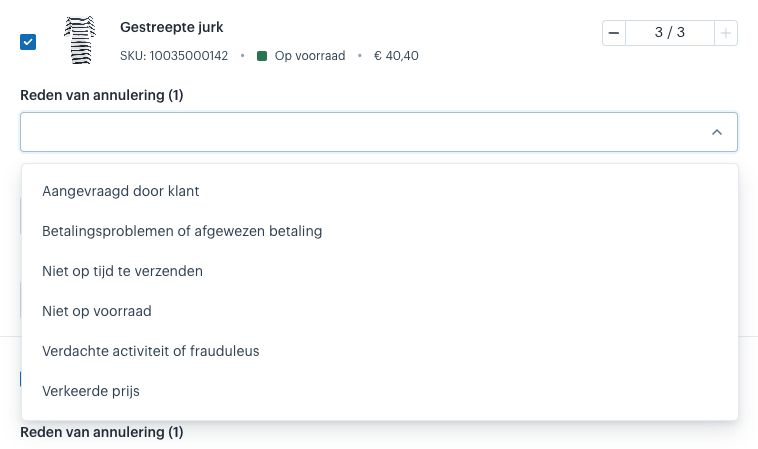
For products that are out of stock, the cancellation reason is automatically set to “Out of stock.” For the other products, you must still choose a cancellation reason.
You can choose from the available options shown in the interface.

Refund costs
During cancellation, you can also indicate whether you want to refund the shipping costs and/or payment costs. By selecting one or both options, you determine whether these costs should be refunded for the order.

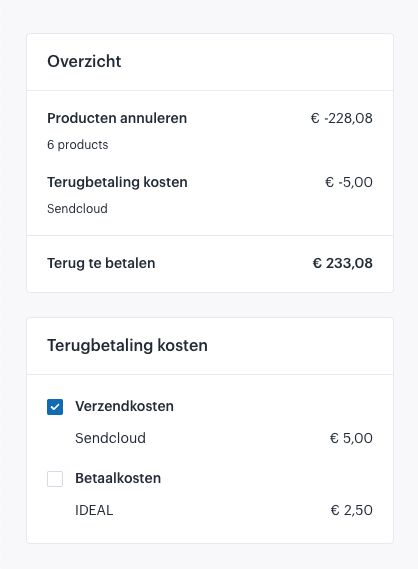
Once you have selected the reasons for all products and chosen the refund options, click Next in the top-right corner. At that moment, the products are cancelled.
Restocking
In the Restocking step, you choose what should happen with the stock of the cancelled products.
For each product, you indicate whether the stock should be added back to your warehouse or whether the product should not be returned to stock.
For example: If you cancelled a product because it was not actually in stock, you do not want to release stock for it again. For these products, click the cross icon.

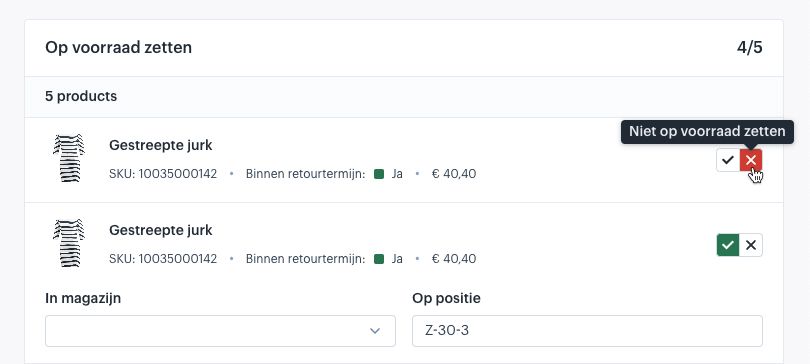
For products cancelled for other reasons—but that are physically in stock—you can release the stock again.
Choose for each of these products:
- The warehouse where the stock should be added
- The position where the product should be stored
The warehouse and position fields work like a waterfall: If you select a warehouse on the first line, it will automatically fill in for the empty fields below. You can still adjust them individually afterward.

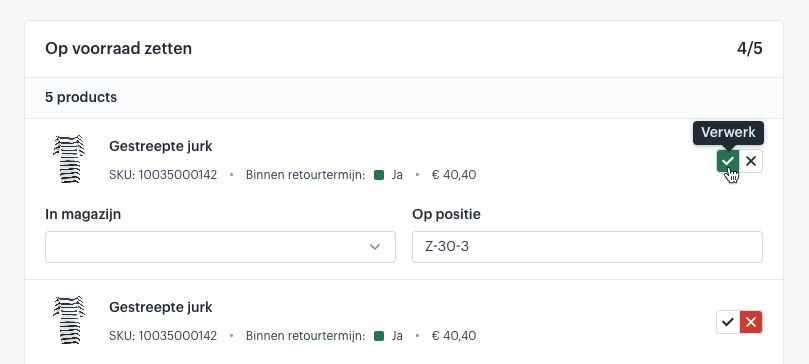
When everything is filled in correctly, click Cancel products in the top-right corner to complete the process.
The stock for products you chose to restock will be updated, and the products in the order will be marked as cancelled.
Cancelling an entire order
There is no single action to cancel an entire order. To cancel an order, you must cancel all products in the order.
You can do this via the products grid by selecting all products and starting the cancellation process.